A VPN should make you feel safer online, not turn your internet into wet cement. In this Surfshark VPN review, the picture is clear: Surfshark gets a lot right, especially if you want strong speeds, simple setup, and one account that covers every device in your home.
That matters because many VPNs look good on a sales page, then feel clunky once you install them. Surfshark is easier to live with than most, and its long-term pricing makes it appealing for budget-minded users in the US.
Before getting into the app, it helps to understand what Surfshark is doing behind the scenes and why that changes your browsing experience.
How Surfshark VPN works in plain English
When you go online without a VPN, your device connects straight to the site or service you’re using. That direct path is simple, but it also exposes your IP address, which can reveal your general location. On public Wi-Fi, that kind of open route can feel like walking through a crowd with your wallet half out of your pocket.
A VPN adds a protected middle step. Instead of sending traffic straight from your device to a website, it encrypts that traffic and routes it through a VPN server first. As a result, the site sees the VPN server’s IP address instead of your own.
That gives you two main benefits. First, your connection becomes harder to intercept or track, which is useful on hotel, airport, café, and other shared networks. Second, you can change your apparent location by picking a server in another country. That’s what makes region-locked content possible to access when a service offers different libraries by country.
Surfshark follows that same basic VPN model, but what makes it stand out is how approachable it feels. You don’t need to know networking terms or spend an hour digging through menus. If you want privacy with a clean, beginner-friendly app, that matters.
Surfshark features that matter most
Surfshark’s headline feature is unlimited devices. One subscription can cover as many devices as you want, which is a rare perk in a market where many VPNs still cap simultaneous connections. If your home has laptops, phones, tablets, smart TVs, and maybe a game console or two, Surfshark is built for that kind of setup.

The next feature worth calling out is CleanWeb, Surfshark’s built-in ad blocker. It helps reduce ads and trackers while you browse, and that makes the web feel less noisy. It’s not magic, but it does make everyday browsing cleaner.
A few privacy tools push Surfshark beyond the basics:
- Bypasser lets you choose which apps use the VPN and which don’t. That’s useful if you want your browser on the VPN but a local app to stay on your regular connection.
- Rotating IP can change your IP address at intervals while you’re connected, which adds another layer of privacy.
- Dynamic MultiHop routes traffic through more than one VPN location for added protection.
- No Borders is built for restrictive networks where normal VPN connections may struggle.
Inside the app, you’ll also see tabs for Static IP, MultiHop, and Dedicated IP. On higher plans and add-ons, Surfshark also offers tools like Alternative ID, Alert, Antivirus, and Search. Those aren’t part of the basic Starter plan, so most people shopping for a straightforward VPN can ignore them unless they want a bigger bundle.
The short version is simple. Surfshark covers the core VPN features most people want, then adds a few extra privacy tools without making the app feel crowded.
Speed performance and server coverage
Speed is where many VPNs win or lose. A service can have a long feature list, but if every page drags and every stream buffers, none of that matters.
In testing from the US on a connection with roughly 1,000 Mbps upload and download speed, Surfshark performed well on nearby servers. The drop was usually around 5 to 10%, which is small enough that regular browsing, streaming, and even gaming still felt smooth.

Long-distance connections tell a different story, but that’s true for almost every VPN. A test from the US to Japan showed about a 60 to 70% drop from baseline speed. That slowdown was noticeable, yet the connection still felt fast enough for normal browsing, streaming, and gaming.
Upload speeds followed the same pattern. Nearby servers kept losses fairly small, while faraway servers hit harder. So if you’re moving large files, uploading video, or sitting in long video calls, it makes sense to pick a location close to you whenever you can.
If speed matters more than location, choose a nearby server first. You’ll usually get the best balance of privacy and performance.
Surfshark also has a large network, with over 4,500 servers across 100 countries. That gives you a lot of room to move if a server feels slow or crowded. Coverage spans North America, Europe, Asia Pacific, South America, and Africa, with examples including the US, Canada, Mexico, the UK, Germany, France, Japan, Singapore, and Australia.
That wide spread helps with two things. It gives you more nearby options for better speed, and it gives you more regions to choose from when you’re trying to access country-specific content.
Surfshark pricing and which plan offers the best value
Pricing is where Surfshark becomes especially tempting. The key thing to understand is that the total cost depends on two choices: the plan tier and the length of your subscription.
For most people, the Starter plan makes the most sense. That’s the plan centered on the VPN itself, and it includes the main pieces most buyers care about, such as the VPN, unlimited devices, the ad blocker, and the privacy tools covered earlier.
Higher tiers like Surfshark One and One Plus focus more on extra bundled protection, including antivirus and identity-related add-ons. If you’re shopping for a VPN first, Starter is the simplest fit.
Here’s the pricing structure described in the review:
| Option | What you get | Price note |
|---|---|---|
| 24-month Starter promo | 27 months total, because it includes 3 extra months | $1.99 per month promo rate |
| 12-month promo | Shorter term at a similar overall cost | Less compelling value |
| Starter renewal | Annual renewal after the intro period | Around $99 per year, about $9 per month |
In the example given, the 24-month Starter promo works out to about $58 upfront after taxes for more than two years of access. That is the best value highlighted here. By contrast, the 12-month option comes close enough in price that it gives up a lot of extra time for only modest savings upfront.
Surfshark also includes a 30-day money-back guarantee, which lowers the risk if you want to try it and decide it isn’t the right fit.
One detail matters here: promo rates are intro pricing. After the first term ends, the subscription renews at a higher standard rate. That’s common with VPNs, so it’s worth reading the renewal terms before checkout. If you like comparing value against broader market opinions, IGN’s Surfshark review offers another independent take.
How to install Surfshark on desktop
The desktop setup is simple, and the flow is almost the same on Windows and Mac. On Surfshark’s download page, you’ll see choices for browser, smart TV, mobile, and desktop. For a computer setup, choose the desktop option, then download the installer for your system.
On Windows, that means running the surfsharksetup.exe file. On Mac, the button will show the Mac version instead, but the process is similar. After installation, the app opens and asks you to log in with the account you created during checkout.
If you want the setup in a clean sequence, it looks like this:
- Choose the Starter plan or your preferred tier during signup.
- Enter your email and payment details.
- Finish onboarding and create your Surfshark account.
- Open the download page and select Desktop.
- Download the app for your operating system.
- Run the installer and click Install.
- Open the app, log in, and exit the setup prompts to reach the main dashboard.
Once you’re in, the dashboard shows your current location and IP address near the top. From there, most actions are easy to spot. The app doesn’t bury the basics behind complicated menus, which is one reason it’s friendly for first-time VPN users.
Settings worth changing right away
A few settings are worth checking as soon as the app is installed. First, turning on launch app on startup means Surfshark opens when your computer starts. That makes it harder to forget.
Next, you can set up auto-connect and choose which location Quick Connect should use by default. If you always want the fastest local server, or always want a certain country, this is where you set it.
Then there are the main safety options: CleanWeb, kill switch, protocol choices, and Bypasser. The kill switch is especially useful because it can cut internet access if the VPN drops, which helps stop traffic from slipping out unprotected.
Below the VPN settings, the app also gives you controls for language, theme, notifications, subscription details, and a built-in help area for troubleshooting.
How to connect to servers and unblock region-locked streaming content
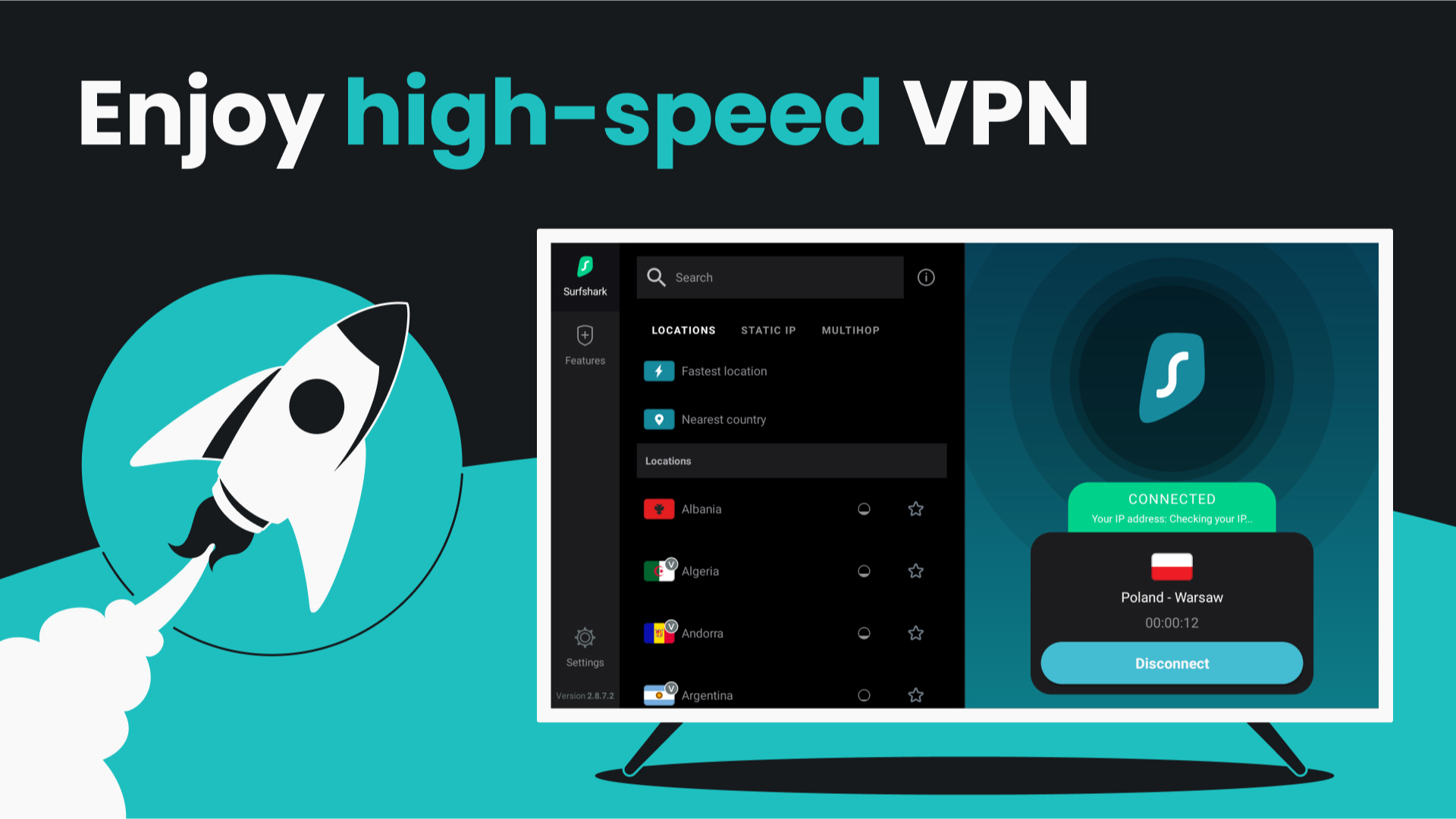
Connecting is easy. Open the VPN tab, click Change, then either scroll through the list of countries or search for one directly. After selecting a location, use Quick Connect to start the connection. When it’s active, the app shows that you’re connected and safe.
That location switching is what makes streaming tricks possible. For example, when browsing Netflix from the US without the VPN connected, the service shows the US catalog. After connecting to a Surfshark server in Japan and refreshing the page, the library updates to Japan’s catalog instead. In the example shown, the page changed from the top shows in the US to the top movies and TV shows in Japan.
If a streaming site doesn’t load the region you want, switch to another server. Streaming platforms sometimes block individual VPN IPs.
That tip matters because unblocking isn’t always perfect on the first try. Streaming services like Netflix may block some VPN servers from time to time. Usually, changing to another server or getting a fresh IP is the first fix to try.
Surfshark isn’t limited to one computer, either. Because the service supports unlimited devices, you can also install it on your phone, tablet, or smart TV. If you want coverage for the whole house, router setup is another option. Surfshark provides a router setup guide for Surfshark if you want every device on your home Wi-Fi to pass through the VPN automatically.
Is Surfshark worth it?
Surfshark works best for people who want a VPN that feels simple on day one and still has room to grow later. The mix of strong nearby speeds, a large server network, unlimited device support, and low long-term promo pricing gives it broad appeal.
The biggest selling point may be how easy it is to live with. You can install it fast, connect in seconds, change locations without fuss, and turn on useful tools like CleanWeb and auto-connect without reading a manual.
If you only remember one thing from this Surfshark VPN review, make it this: Surfshark offers a strong balance of price, speed, and ease of use. For many households, that’s the sweet spot a VPN needs to hit.